TarkovQuestie Interactive Map Guide
Updated for TarkovQuestie 4.3.0 · October 13, 2026
Windows will warn you the first time you run it
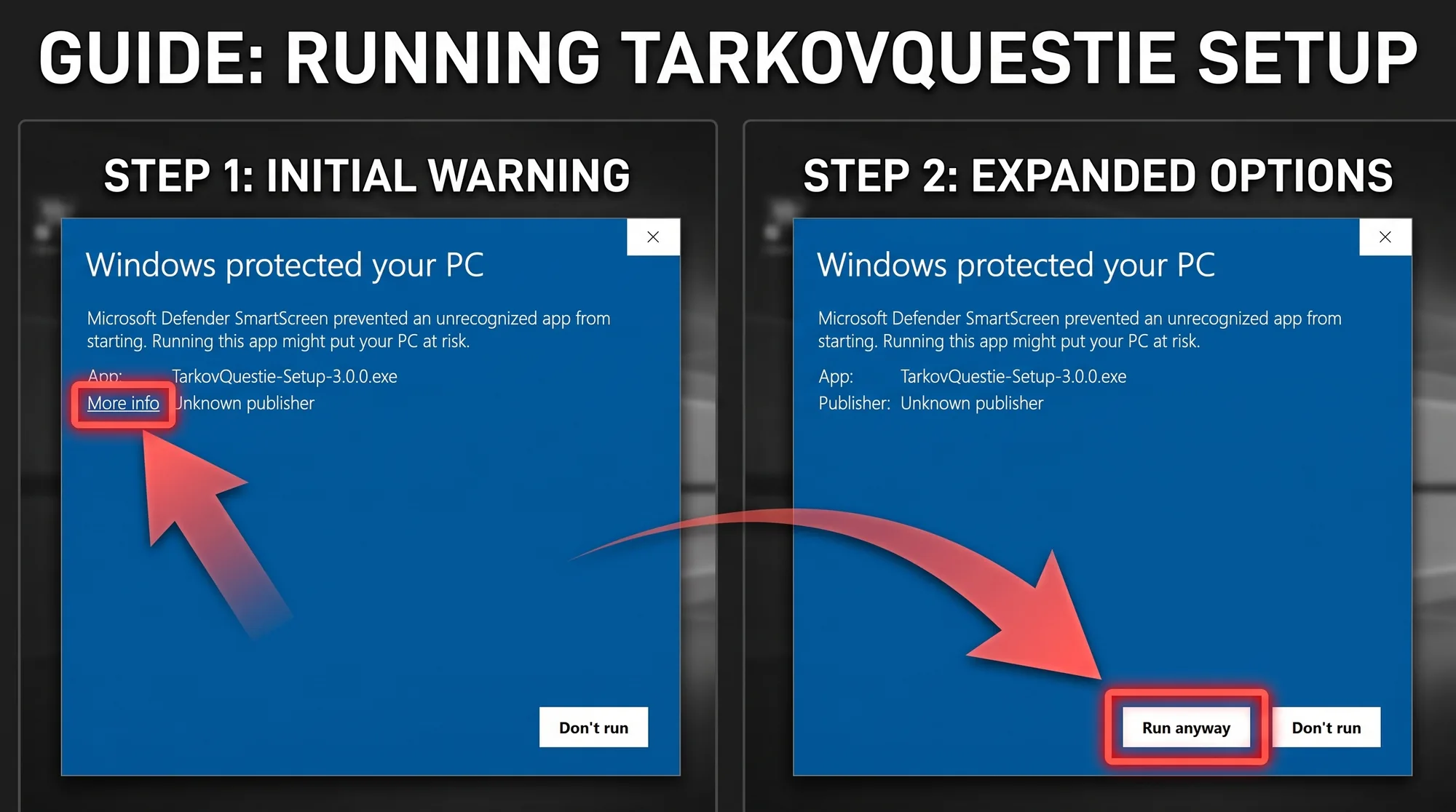
TarkovQuestie is not code signed, so Microsoft Defender SmartScreen does not recognise TarkovQuestie-Setup-4.3.0.exe and shows a blue "Windows protected your PC" screen, with the publisher listed as "Unknown publisher". It is not a virus detection; Windows has simply not seen the file often enough to have built up a reputation for it.
- Click More info on the warning.
- Click Run anyway.
- Reputation is tracked per file, so a new release can show the same screen again even after you allowed the previous one.
- We only publish the installer at cdn.tarkovquestie.com. If you got a copy from anywhere else, delete it.
Bind a screenshot key in Tarkov
TarkovQuestie uses the game's screenshot to compute your position.
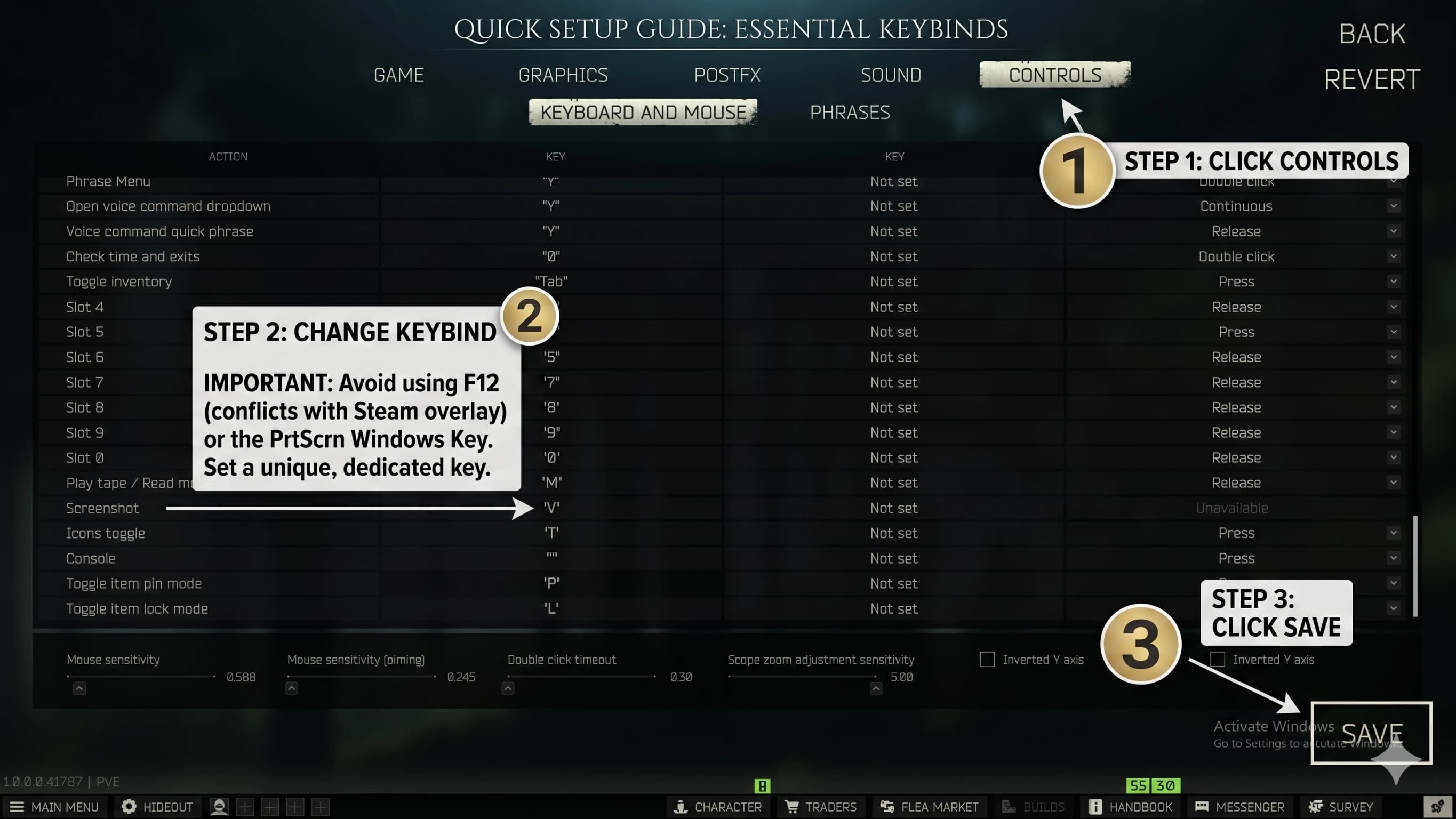
- —Open Tarkov → Settings → Controls → Screenshot
- —Bind to a free key, Steam users should not use F12. V key is recommended
- —No game files are touched
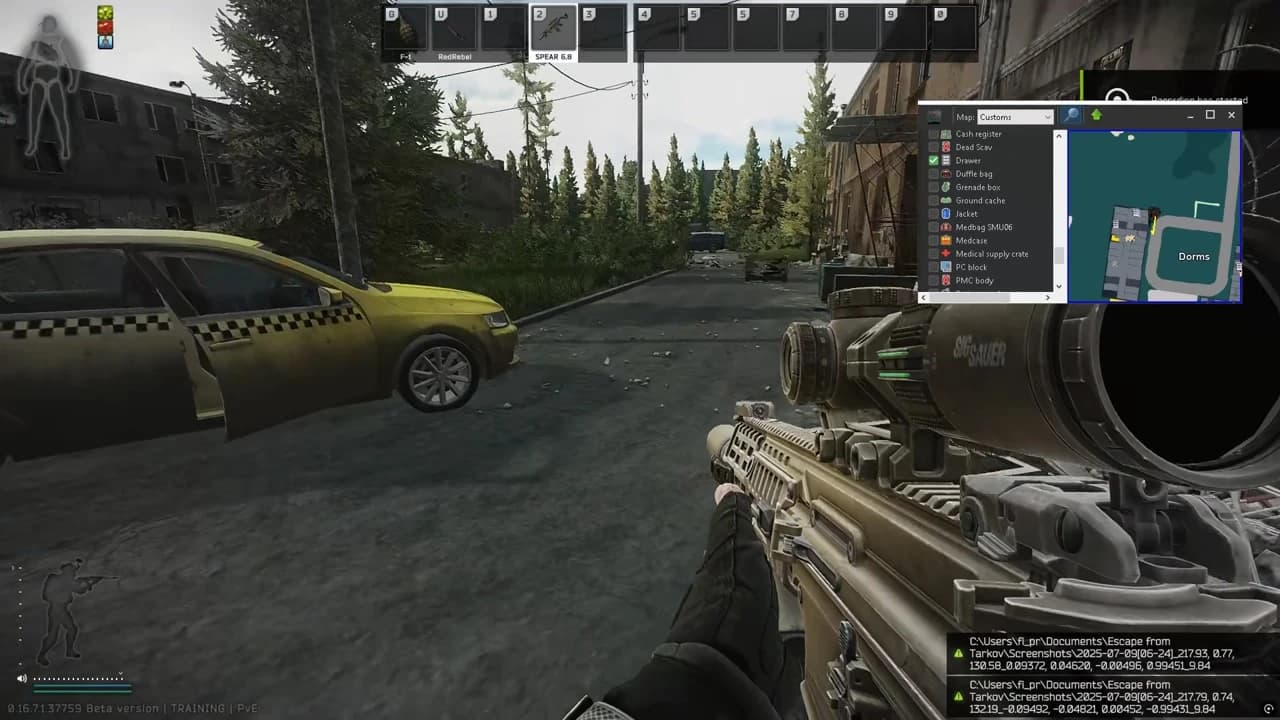
Hop in a raid. Press the key.
Load into any map. Press the key you setup on step 01. Your location will instantly show. On in-game's bottom right corner you will see where the screenshot is being saved. You can go into TQuestie settings and confirm if you need to change the currently screenshot location.
- —13 maps · auto-detected from current raid
- —Auto floor switching when you change levels
- —No FPS impact
Open the Quest Tree & import
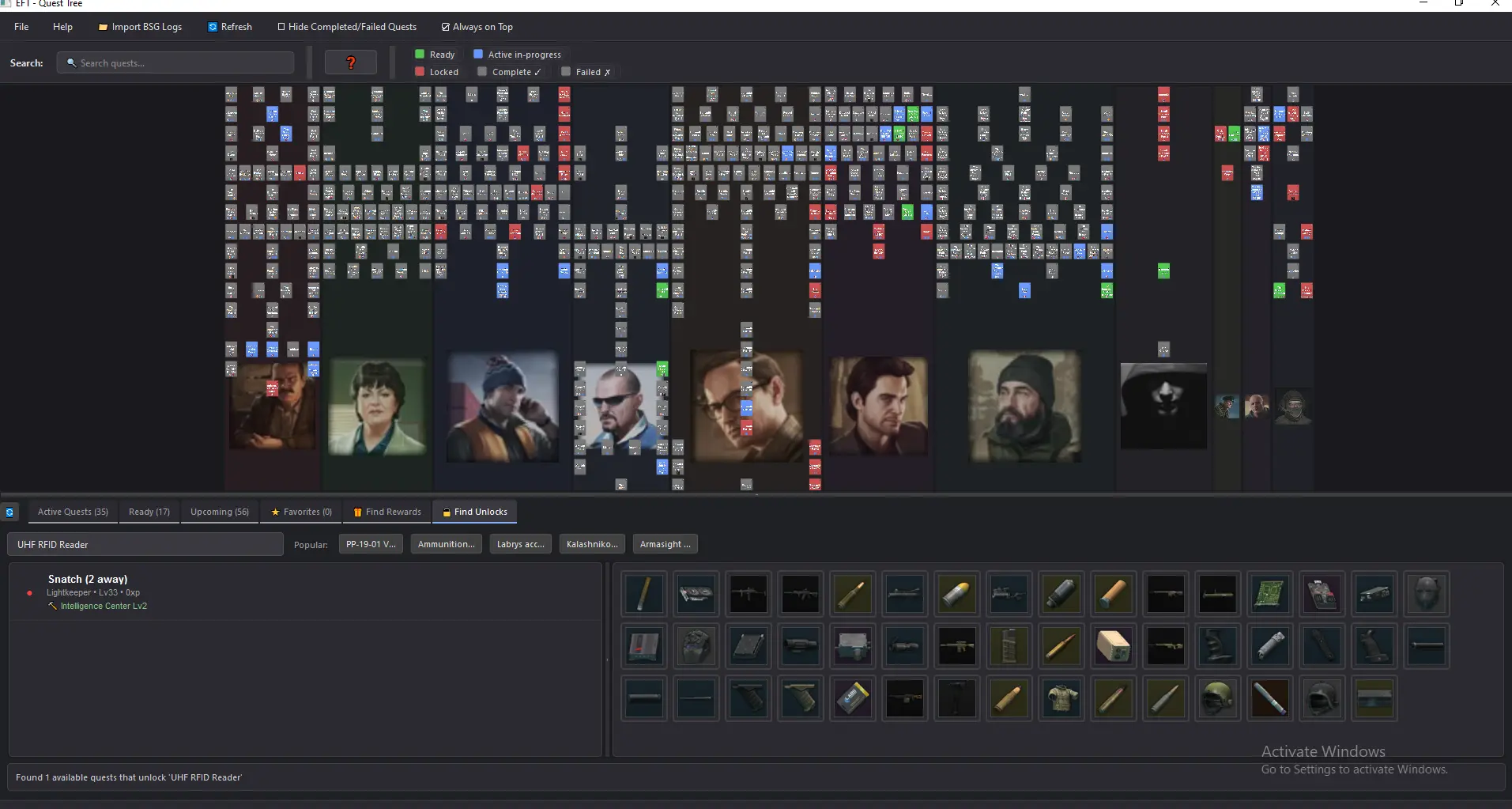
Open the Quest Tree panel and click Import from logs. The app reads your game logs and pulls every quest state(completed, accepted, locked) into the tree, this is the setup to get quest states from game to TarkovQuestie
- —490+ quests · all traders · all states
- —Imported from your full log history and supports PVE and PVP modes
- —Supports different accounts and mid-wipes or prestige times
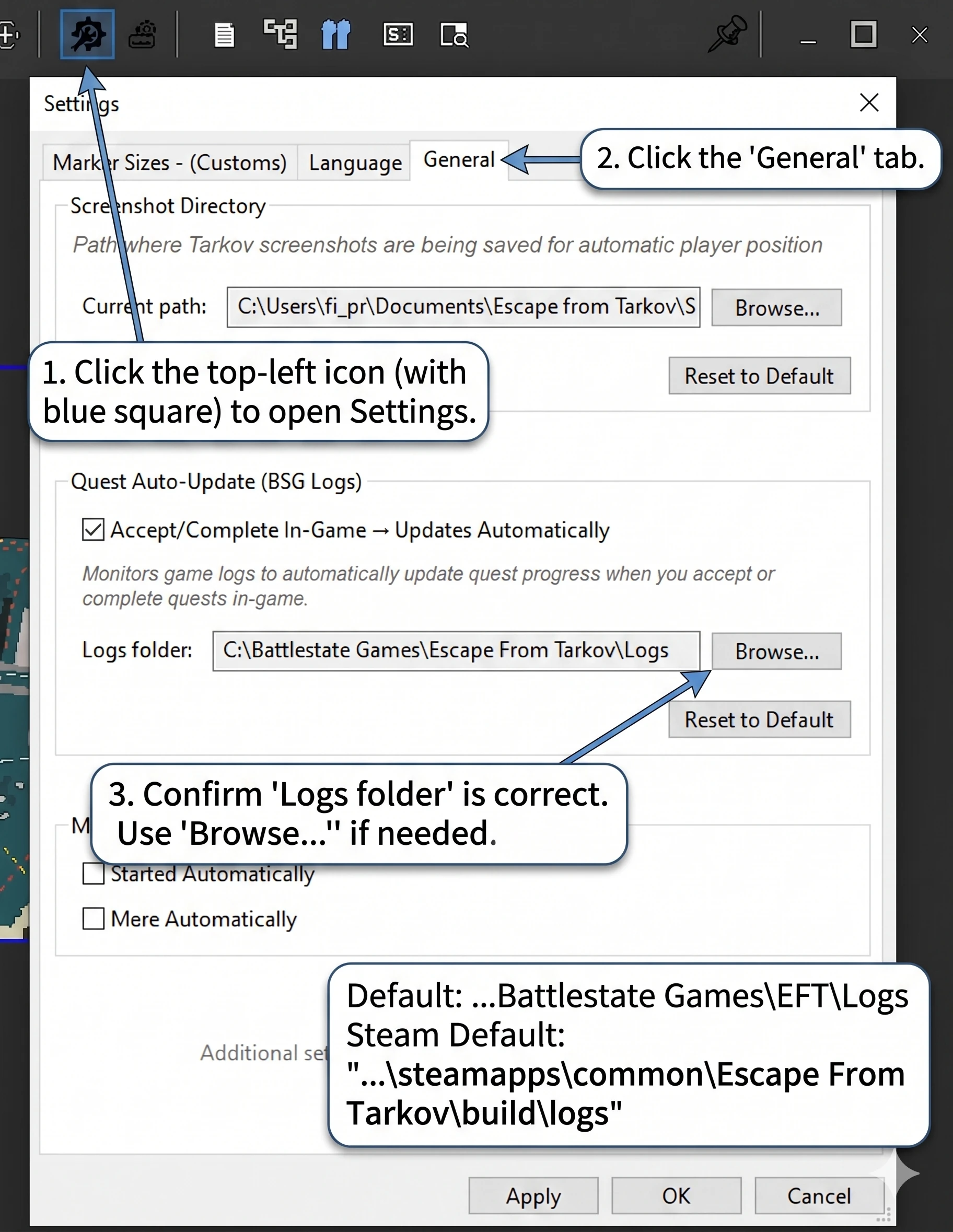
Confirm your logs directory
TarkovQuestie reads your Tarkov client logs to detect quest accept/complete events. Open Settings → Logs and confirm the path points at your current EFT logs folder.
- —Default: …\Battlestate Games\EFT\Logs
- —Steam Default: "...\steamapps\common\Escape From Tarkov\build\logs"
- —App auto-detects in most setups
- —Future accept/complete events sync automatically
Open the item tracker
The mini item tracker is one of the most useful features of TarkovQuestie. Hold Shift and click any item to instantly know if it's needed for a quest, hideout, barter, or pure trash, updated flea price+trader values right there.
- —4,000+ items · updated flea + trader prices
- —Per-item: quest needs, hideout needs, barter value
- —Optional: shows if a SQUADMATE needs it too
- —Use it on top of Tarkov. With smart opacity and smart shrink it auto hides when it should.

Troubleshooting
90% of "it's not working" reports come down to one of these. Walk through them in order or join TarkovQuestie Discord and we help you.
Microsoft OneDrive is uploading your screenshots
OneDrive can upload Tarkov's screenshots to the cloud before TarkovQuestie can read them, and it can also upload the TarkovQuestie app. Both break the normal flow and the app will not show your location.
- Open OneDrive → Settings
- Under "Back up important PC folders to OneDrive", click "Manage backup"
- On the screen that opens, turn OFF the Documents folder and the folder where the TarkovQuestie app lives (e.g. if the app is on your Desktop, also turn OFF Desktop)
- Restart your computer after applying the changes
Lightkeeper and BTR Driver quests do not auto-update from in-game
Accepting or completing Lightkeeper or BTR Driver quests in-game does not auto-update TarkovQuestie's left side quest panel (and Quest Tree). This is not a TarkovQuestie bug. During in-raid gameplay Tarkov does not always write these quest state changes to the logs, so TarkovQuestie has nothing to read.
- In the Quest Tree, search for the quest by name and right-click to set the correct state (Accepted or Completed)
- Or right-click the quest on the left side quest panel to set the state
Import from logs returns no quests or only partial data
After clicking Import from logs you see either 'No quest data found in the selected logs' or only some quest states show up. This is not a TarkovQuestie bug; the import is reading what's available. The common cause is that the BSG Launcher's 'Clear Cache' option was used at some point, which deletes your client log files. Without those logs, the accept/complete events TarkovQuestie needs to import are not present and you have to do it manually.
- To make it easier, pin the Quest Tree above the game with the 'Stay on top' option, then use the search bar, which jumps straight to your result
- For each quest in your in-game Tasks, find it by name in the Quest Tree
- Right-click the quest and set the correct state (Accepted or Completed)
- Avoid clicking "Clear Cache" in BSG Launcher going forward; future accept/complete events will sync automatically as Tarkov writes new logs
Quest state does not auto-update after accepting or completing in-game
You accept or complete a quest in Tarkov but TarkovQuestie's left side quest panel (and Quest Tree) still shows the old state. The common cause is that the folder configured under 'Quest Auto-Update (BSG Logs)' in TarkovQuestie's settings points at the wrong location, so the app cannot see new log entries as Tarkov writes them.
- Right-click the map and click "Settings"
- Open the "General" tab
- Under "Quest Auto-Update (BSG Logs)", click "Browse..." and select your EFT logs folder
- Steam default: …\steamapps\common\Escape from Tarkov\build\logs\
- Non-Steam default: …\Battlestate Games\Escape From Tarkov\Logs